
- Join
- Login

What is Rochester People?
This is a website for people to get together and discuss local issues, find and talk to people with similar interests, find and review local businesses, read and write local news stories, and see what’s going on locally.
What can I do on the site?
This site lets you find and connect with other people, discuss local issues, find and review local businesses, read and write local news, share photographs, and search for a job, home or car.
-
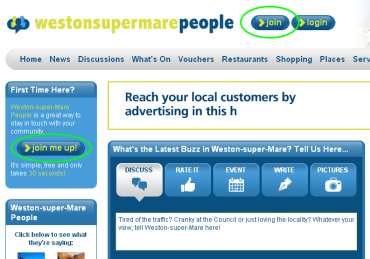
Register: To comment on stories, write your own stories or connect to other users you’ll need to register for the site.
To do so, click on the Join button shown at the top of the page or the join me up! button on the left of the homepage.
-
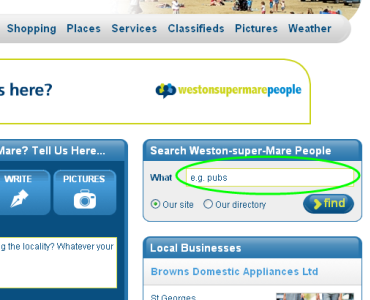
Connect: Once you’ve registered you can use this site to find other people in and from your town – people you may already know, people with similar interests, people campaigning for the same issues or people you’ve lost touch with.
You’ll find other people using the website in lots of ways: the box in the top left-hand side of most pages shows you the last eight people to do something on the site, and you can search for people by using the search at the top-right of the page.
-
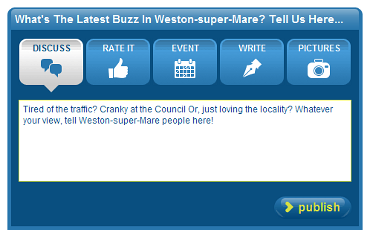
Write: One you’ve registered you can comment on stories, rate and review local businesses and write your own stories about your town.
If you want to just quickly tell us what’s going on in your town you can use the “The Latest Buzz?” box at the top of the homepage.
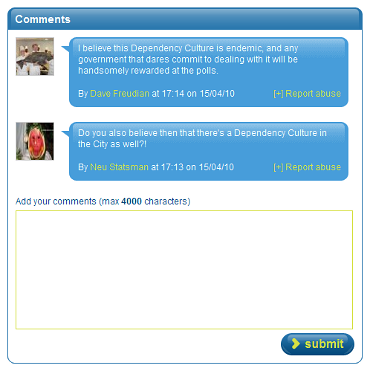
If you want to comment on a story you can always type a response in the Comments box below the story.
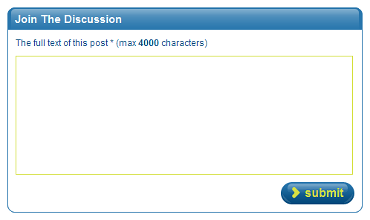
If you want to join a discussion simply type your post in the box below the discussion.
-
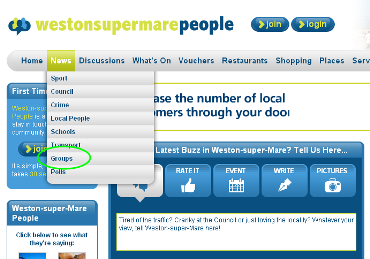
Join and create groups: Anyone can create a group or join an existing group. So if you want a place where your sports team, your charity volunteers, your society, your friends or any other group of people can keep in touch, you can create a group on this site.
To visit groups or create a new group follow the “Groups” link in the top navigation bar.
How do I tell people about the site?
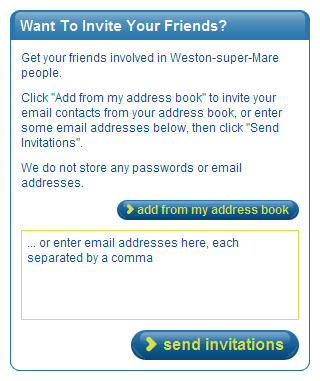
You can invite anyone in your Yahoo! Mail, Google Mail, Hotmail, MSN Live or other address books to join you on this site from the “Invite Your Friends” box on your profile pages.
What does this icon mean?
- Groups:
- This icon means you are looking at a Group, for example the General Discussion Group or the Anglers Society Group
- Discussion:
- This icon represents the start of a Discussion, where local people can express their views on local issues.
- Reply:
- This icon represents a reply in a discussion.
- Story:
- This icon represents a story that has been written by a local person using the site.
- Event:
- This icon represents an event notice that has been posted by a local person using the site.
- Pictures:
- This icon represents a picture gallery of local photos that has been posted by a local person using the site.
- Comment:
- This icon represents a comment, either on a story, event or picture gallery.
- Business:
- This icon represents a local business.
- Review:
- This icon represents a review of a local business posted by a local person using the site.
- Voucher:
- This icon represents a voucher or special offer that has been posted by a local business owner.
I am a local business - I want to promote my business to people in my town
-
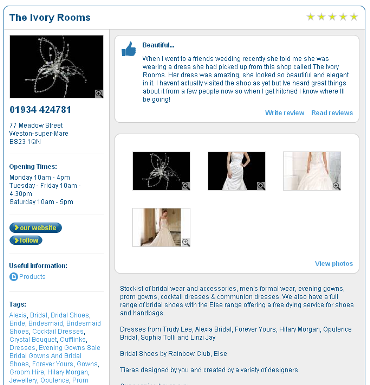
Your business should already be in our business directory. If it isn’t you can add it yourself by registering as a user and then logging in and clicking the ‘claim your business’ button on the right of the homepage. There are a number of ways you can enhance your directory listing and promote your business to other site visitors including adding photos and more details about your business..
How are cookies used on the site?
Websites today normally offer some level of interaction - whether it's sending and receiving messages, buying goods or choosing how you wish to view the site. To manage this, small text files called cookies are stored on your computer.
For more information on cookies and how you can manage your privacy settings, read through our FAQs below or for detailed information about the Cookies used by us, please see our cookies and privacy policy
Are cookies viruses?
No. Cookies are not viruses, trojans, spyware, or worms or any other kind of malware.
Are cookies programs?
No. Cookies are not programs. They can’t install things you don’t want on your computer.
Can cookies see what’s on my computer?
No, cookies can’t see what is on your computer. Nor can they collect any other information from your computer, nor snoop on your files.
Can the cookies I’ve got be seen by other people?
No. A cookie can only be read by the site that gave you the cookie in the first place. And of course you can see your own cookies, as described later.What is in a cookie?
A cookie contains seven main pieces of information:
• Domain
The domain of the website that set the cookie. A cookie can ONLY be read by the site that set it.
• Name
The name of the cookie
• Value
The identifying information the cookie is carrying. This is normally an encrypted string of letters and numbers, that is only meaningful the website that set the cookie.
• Expiry
How long the cookie lasts for. If this is not set, the cookie will disappear when you close your browser (session cookies). Otherwise it will delete itself on the date set in the expiry field.
• Path
This is not always used, but can be set so that the cookie is only sent when the user is in a particular part of the website. For example if the domain is set to acme.com, and the path is set to /accounts, the cookie will only be used when the user is in the acme.com/accounts part of the site.
• Secure
This attribute can be used to tell the browser to only use the cookie when it is using a secure or encrypted connection.
• HttpOnly
This attribute can be used to tell the browser to only use the cookie when the HTTP protocol is being used. I.e. if this attribute is set, the cookie won’t be accessible via non-HTTP methods, such as JavaScript.
Can I control the cookies I get?
Yes. You can control what cookies you get, and which cookies you keep, and whether or not information about your browsing activity is captured.
Below are instructions on controlling cookies in the most recent versions of Windows Explorer.
Select Tools > Internet Options then Privacy Tab then Advanced
Check Override automatic cookie handling
Click Accept, Block or Prompt then OK twice
If you have Firefox, please click here.
If you have Chrome, please click here.
If you have Safari, please click here.
If you are using a different browser, please refer to the ‘Help’ function of your particular browser for further information.
By using your browser settings to disable cookies you may prevent the Site from operating fully.
I have a question that isn’t answered here
Please get in touch! You can email us at [email protected]
Site Update
Logging in Issues
This is quite a common problem at the moment. We changed our registration system a few weeks ago and it has had a slight impact on some users logging into the site and adding content.
There is a simple fix however. Just follow the steps below:
- 1. Ensure you are logged out of the site
- 2. Clear your cookies
- 3. Log back into the site
This will clear the old cookies and allow you to login to the site and continue to add content on the site.
Frequently Asked Questions
- What is this site?
- What can I do on the site?
- How do I tell people about the site?
- What does this icon mean?
- Which other towns have a Local People website?
- I am a local business - I want to promote my business to people in my town.
- How are cookies used on the site?
- I have a question that isn’t answered here.


Copyright © 2014 Local World. All Rights Reserved.